How to Fix High CPU & RAM Usage from League of Legends Overlays
League of Legends companion apps are designed to make your game easier by providing real-time stats, draft counters, and build recommendations. However, many players notice an unwanted side effect after installing popular overlays: sudden FPS drops, micro-stutters during teamfights, and massive spikes in CPU and RAM usage.
If your PC feels sluggish while running a draft assistant, background resource bloat is usually the main culprit.
In this guide, we break down why League overlays consume so many resources and provide step-by-step solutions to fix high CPU and RAM usage on your system.
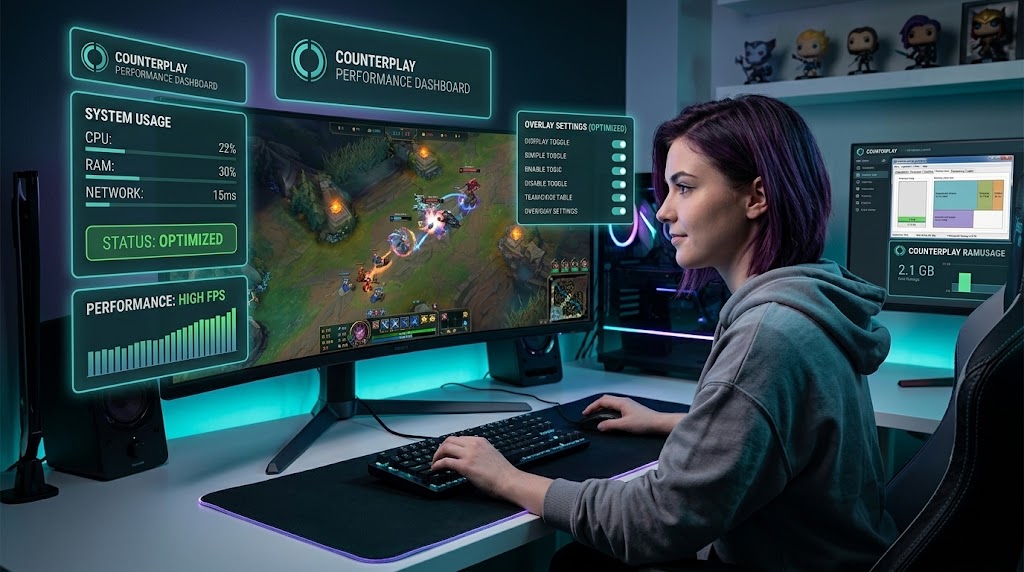
Why Do League Overlays Cause High Resource Usage?
Most traditional companion tools do not run as standalone applications. Instead, they rely on complex software stacks and background processes that load your hardware:
- Third-party frameworks: Tools running on top of external platforms launch multiple background sub-processes to hook into the game, leading to elevated RAM consumption — often 1.5 GB to 3 GB of memory.
- Ad engines and video players: Free overlay apps frequently render auto-playing video ads and animated banners in the background. Decoding continuous video taxes both your CPU and GPU while you are trying to play.
- Hardware acceleration conflicts: Many apps use Chromium-based web views. If hardware acceleration is misconfigured, the app competes directly with League of Legends for rendering cycles.
4 Ways to Fix High Resource Usage
1. Toggle hardware acceleration
Chromium-based overlays use your graphics card to render interface elements. If your GPU is already under load, this causes frame rate drops in game.
- Open your overlay app's settings.
- Find the General or Game tab.
- Toggle hardware acceleration off — or on, depending on whether your bottleneck is the CPU or the GPU — and restart the application.
2. Turn off auto-recording and capture features
Many overlays come bundled with automatic highlight capturing. Disable automatic match recording in the capture settings: continuous background encoding is one of the single biggest causes of CPU spikes and micro-stuttering during teamfights.
3. Stop background processes and auto-launch
- Open Task Manager (Ctrl + Shift + Esc) and end secondary web rendering processes when you are not drafting.
- Disable auto-launch on startup so background frameworks only run when you explicitly open them.
4. Switch to borderless fullscreen
Running League in exclusive fullscreen while using heavy external overlays can cause display conflicts and input latency. Switching the in-game display setting to windowed borderless often stabilises frame delivery when overlays are active.
The Ultimate Solution: A Standalone, Ad-Free Overlay
While tweaking settings can mitigate performance issues, the most direct fix is an app that does its work before the match and is not running over it at all.
- Standalone: CounterPlay is a Windows app of its own — no Overwolf or other platform running in the background.
- Ad-free: no video ads or banners inside the app.
- Out of the way in the match: by default it hides to the system tray when the match starts, so it draws nothing over the game.
- Native client UI: Shows counter picks, team composition styles and the damage mix of your draft in an interface styled after the League client.
Conclusion
High CPU and RAM usage from League overlays doesn't have to ruin your performance. By disabling unnecessary capture features, adjusting hardware acceleration, or moving to a clean standalone tool like CounterPlay, you can keep draft help without carrying an overlay into the match itself.